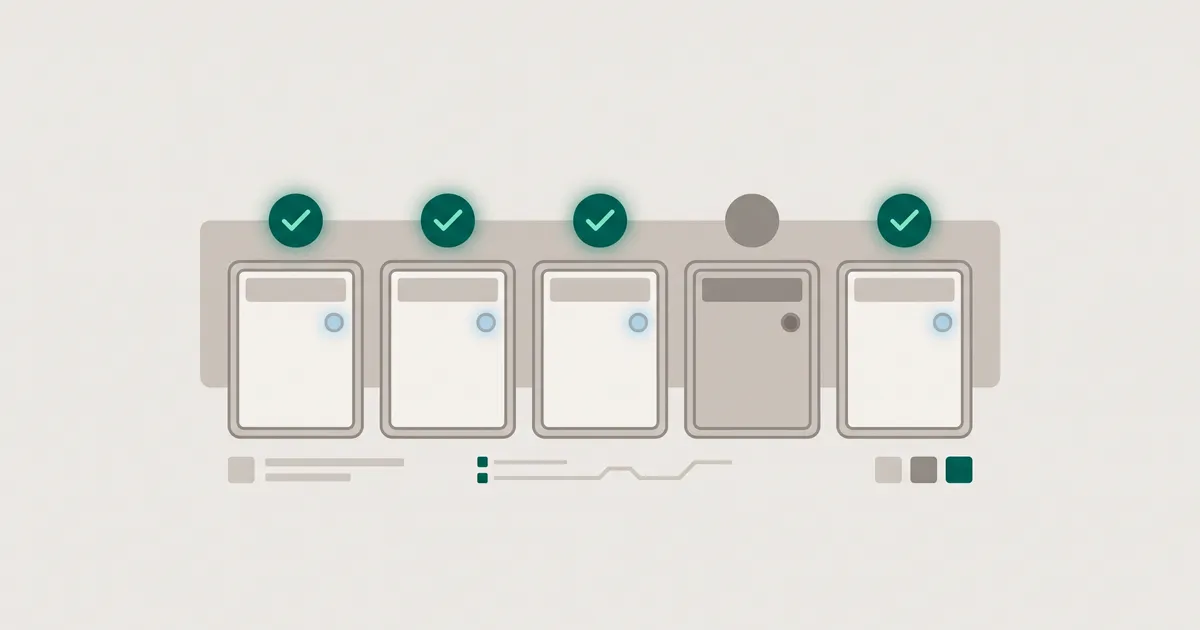
WordPress 7.1.5 is a security release, shipped on 18 November 2026, and WordPress recommends updating immediately. If your site runs 7.1, it should have installed the update on its own. "Should have" is the problem, so confirm the installed version yourself today. If you are on an older branch, you probably received a backported point release, and the rest of this post explains why that buys you time rather than safety.
WordPress 7.1.5 is out: what it fixes and why it should not wait
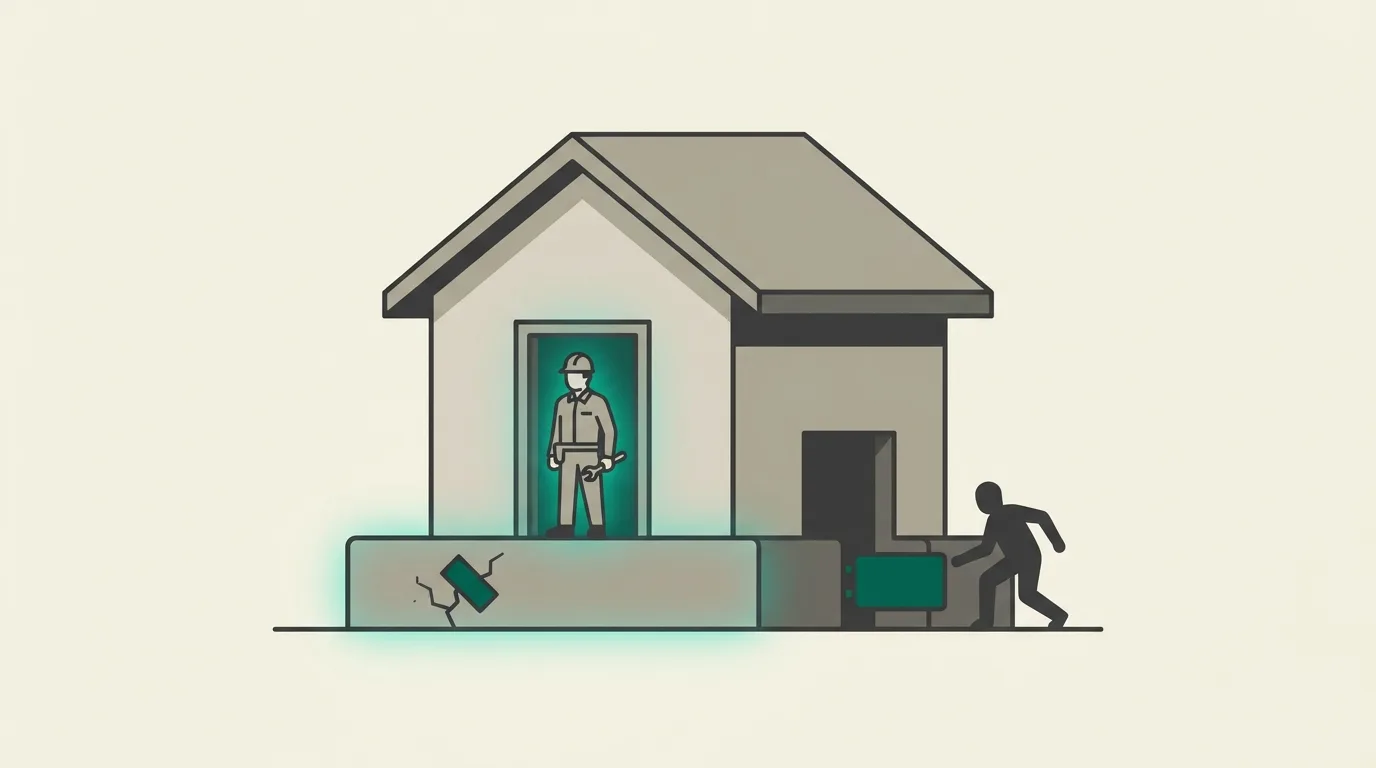
The release contains 20 fixes. Patchstack classes 18 as vulnerabilities and the other two as hardening changes with no exploitable path. Other trackers count slightly differently (CovertSwarm has 19 plus one hardening change), but the order of magnitude is not in dispute.
Alongside the headline flaw, the release fixes:
- a SQL injection through nested relation values in
WP_Meta_Query - a second SQL injection through the front page setting when previewing in the Customizer
- a denial of service through batched XML-RPC pingbacks
- a Multisite issue that could let a site Administrator take over a Super Admin account
- a leak of private taxonomy terms through REST API search, without a login
It is also the fifth security release on the 7.1 branch since it launched in August. 7.1.3 landed on 6 October, 7.1.4 on 28 October, and 7.1.5 on 18 November. That cadence matters later, because every release is another chance for a silently broken update process to leave you behind.
The unauthenticated Template Part flaw
The most serious item was reported by Logan Homolka and sits in the Template Part block, which WordPress uses for shared layout elements such as headers and footers. Pantheon describes it as privilege escalation through Template Part block attributes, which could lead to remote code execution. No account is needed to reach it.
Remote code execution is the category you never want on a public website. It is the gap between "someone defaced a page" and "someone now runs code on your server".
No confirmed exploitation is not the same as safe
None of the release notes mention exploitation or a public proof of concept, and none has been confirmed. WordPress also publishes the list without severity ratings, so you will not get a neat "critical" label to forward to your team.
Our view, and it is a view rather than a sourced fact: the window after a patch goes public but before it is exploited is the best time to update. Once a fix ships, anyone can compare the old and new code. You are racing people who read diffs for a living.
A public patch is also a public map of where the hole was. Update before someone finishes reading it.
Why a host firewall rule is not the update
Some managed hosts moved early. Pantheon deployed web application firewall rules in advance for some of the vulnerabilities, then said plainly that those rules do not replace the update. Note the word "some". A firewall rule blocks request patterns it already knows about. It does not fix the code, it may not cover every issue, and it does nothing if traffic reaches your site another way. Treat host protection as a seatbelt, not the brakes.
Check that your site actually updated
Most people skip this step, because WordPress is meant to handle minor releases on its own.
Compare the installed version with the fixed version for your branch
Find your installed version under Dashboard, then Updates, or from the command line:
# Show the installed core versionwp core version# List any available core updateswp core check-updateThen compare it against the fixed release for your branch. Confirmed fixed versions include 7.1.5 for the 7.1 branch, 7.0.9 for 7.0 and 6.9.12 for 6.9. For anything older, check the release archive on WordPress.org rather than trusting a blog post (including this one) for the exact number.
If you are on an older branch and need to update manually, stay on that branch. WP-CLI's --minor flag takes only the newest maintenance release for your current branch, so you are not jumped to a new major version mid-incident:
wp core update --minorRead Site Health, but do not trust the green tick alone
Go to Tools, then Site Health, and open the Status tab. It includes a background updates test, which WordPress's own documentation describes as checking that the site can auto-update when a security release comes out for your version. The site also needs to reach api.wordpress.org.
That test tells you whether updates can run. It does not tell you whether the 7.1.5 update did run. As Brandefense put it after 7.1.4, confirm the installed version instead of assuming the automatic update finished. A green tick and an out-of-date version number can coexist.
Why automatic updates quietly stop working
By default, WordPress installs minor core releases and translations automatically. Plugins, themes and major versions only update automatically if you enable them. 7.1.5 is a minor release, so on a healthy site it should already be there. When it is not, the cause is usually on a short list.
Config switches and cron settings that block them
Start with wp-config.php. Two constants do very different things:
WP_AUTO_UPDATE_COREcontrols core updates only.AUTOMATIC_UPDATER_DISABLEDturns off every background update, security releases included.
The second is a classic cause of Site Health's "not working as expected" warning. It is often set by a host, or by a previous developer who wanted control over update timing and then moved on.
# Look for the usual blockers in wp-config.phpgrep -nE "AUTOMATIC_UPDATER_DISABLED|WP_AUTO_UPDATE_CORE|DISABLE_WP_CRON" wp-config.phpBeyond config, the usual culprits are DISABLE_WP_CRON set without a real server cron to replace it, /wp-content and /wp-includes not writable by the web server, a host blocking outbound HTTPS to api.wordpress.org, a plugin disabling wp_version_check(), and a failed loopback request.
A past critical failure that disabled updates
This one catches people out. If an automatic update fails badly, Site Health can report: "A previous automatic background update ended with a critical failure, so updates are now disabled."
Think about what that means in a month with three security releases. One silent failure during 7.1.3 or 7.1.4 could have switched updates off, and the site has sat there ever since, looking normal from the front end. Fix the underlying cause first (permissions, disk, a conflicting plugin), update manually, then re-run Site Health and confirm the version.
On client sites we check, in order: installed version against the branch's fixed version, Site Health status, the three constants above, file ownership on core folders, outbound connectivity to api.wordpress.org, and any history of a critical update failure. It takes minutes, and it catches the sites that only look patched.
Old branches: backports are a courtesy, not a plan
Supported, backported and retired
WordPress's official position is that only the most recent version is actively supported. Fixes for older branches are a courtesy, with no fixed schedule and no promise they will continue for the next flaw. In practice there are three states:
- Supported: the current branch, 7.1 today.
- Backported: every branch back to 4.7 currently has a patched release.
- Retired: 4.6 and earlier receive no security updates at all.
Backported does not mean equally protected. For 7.1.4, one breakdown showed 22 issues applying to 7.1, 7.0 and 6.9, 20 to 6.8 and 6.7, and 9 to 6.3 through 5.9. Some issues do not exist on older code, but the fixes are partial and done by hand. "Less affected" is the honest description, not "safe".
According to WordPress.org version stats as reported on 29 October, 64.4% of installations ran 7.1, 34.6% ran something between 4.7 and 7.0, and 0.95% ran versions older than 4.7 with no fixes at all. A third of sites are relying on the courtesy.
Why the oldest branches get patched last
Backports take effort, and the oldest branches come last. After 7.1.3, Patchstack reported on 6 October that backports had shipped through 6.6 while 4.7 to 6.5 were still waiting. 7.1.4 went better: patched releases for every branch from 4.7 to 7.1 were dated 28 October, and the update service offered them as automatic updates on 31 October. That is still a gap of days.
A small change that can bite old sites
7.1.5 removes 1024-bit certificates from the root certificate bundle shipped with 6.9.12 and earlier. WordPress 7.0 had already removed them. We have seen no reports of breakage, but if an old site talks to an unusual third-party endpoint, test those connections after updating.
Our position: if you are on 5.8 or 6.1, a point release buys you time. It does not buy you a plan.
Get plain-English guides like this in your inbox.
One short email a month. WordPress, Shopify, SEO, no fluff. Unsubscribe in one click.
We never share your email.
What to do if your site is stuck on an old version
Staging, PHP and plugin checks before you jump
Never jump several major versions on a live site. Take a full staging copy and work there. Your branch also determines which PHP versions can run underneath it, and that is usually the real reason to move. Check the PHP requirements for your current and target branches before assuming the server can follow you.
Then audit plugins and themes. List every plugin, note which are still maintained, and flag anything abandoned or heavily customised. If the gap is large, upgrade in stages, testing forms, checkout, logins and any custom integrations at each step. If you are curious what the newer branches add beyond security, we covered what WordPress 7.0 actually gives a business site.
Upgrade or rebuild: when to stop patching
Stop patching and plan a move when any of these is true:
- the PHP version your branch needs is itself end of life
- key plugins have dropped support for your branch
- updates keep failing, and each fix is another workaround
At that point the question is upgrade or rebuild. Sites built on heavy page builders with years of layered customisation are often cheaper to live with after a clean rebuild, a trade-off we unpack in page builders versus custom themes and long-term cost. If you inherited the site and nobody can say what was changed or why, start with an assessment before touching anything, the same approach we take in an inherited or unfinished app audit.
7.2 is at release candidate stage, with a final date not yet confirmed. Do not wait for it. Get onto a patched release now, then plan the bigger move. This is the work our WordPress development and maintenance team handles week to week, with fixed quotes and code you own.
Multisite and managed hosting edge cases
Multisite networks have their own item in this release: the fix for a site Administrator taking over a Super Admin account. If your network's site admins are clients, franchisees or departments, treat this as urgent. The boundary between site admin and network admin is the whole security model.
Site Health can also mislead on networks. A past Trac ticket found the background updates warning appearing on subsites but not on the main site. That bug was fixed, but the lesson holds: check the network's core version directly instead of reading warnings site by site.
Managed hosts that run updates outside WordPress can trigger Site Health warnings even when everything is fine, because the host has deliberately switched WordPress's own updater off. That is acceptable only if the host actually ships security releases promptly. Confirm the version number either way, and ask your host how quickly it applied 7.1.5.
If you are not sure whether your site updated, or whether its branch is worth keeping, request a free website audit and we will check the version, the update path and the branch for you. We reply within 4 hours during UK business hours.